Astro, a static site generator (SSG), also provides a built-in API endpoint. I’d been wanting to try it out since I migrated my website to Astro.
As the Astro documentation says:
Astro lets you create custom endpoints to serve any kind of data. You can use this to generate images, expose an RSS document, or use them as API Routes to build a full API for your site.
You can use it whether in SSG or SSR, but how it works is different.
SSG
- Called at build time
- Use case: blog posts, product catalog, generate sitemap
SSR
- Called on request as live server endpoints
- Use case: dynamic OG image, external API, authentication
Why Use Astro Endpoints
- CORS: server-side requests avoid browser CORS restrictions
- Security: hide API keys and sensitive credentials
- Performance: faster initial page load and server-side cache
- SEO: pre-rendered content is crawlable (SSR)
- Codebase: no need to separate backend
Implementation
To create endpoints, you just need to add .js or .ts file that includes exports like GET or POST to the src/pages directory (e.g., src/pages/data.json.ts builds an endpoint /data.json ).
Or you can create an api folder in src/pages to have clear endpoints.
Basic
Create src/pages/api/index.ts and add the following code.
import type { APIRoute } from "astro"

export const GET: APIRoute = () => {
  return new Response("Hello, Astro Endpoints 🚀", { status: 200 })
}
Then npm run dev and access http://localhost:4321/api in your browser. This endpoint returns “Hello, Astro Endpoints 🚀” text.

Fetching External Data
For example, to fetch the TMDB API in the Astro endpoints.
1. Create .env
If you need an API key to access the API, create an .env file in the project folder.
TMDB_API_ACCESS_TOKEN=YOUR_API_TOKEN2. Create Endpoint
You can access the environment variable with import.meta.env.VARIABLE_NAME.
Here’s the code to get a list of movies that are currently in theatres.
import type { APIRoute } from "astro"

const options = {
  method: "GET",
  headers: {
    accept: "application/json",
    Authorization: `Bearer ${import.meta.env.TMDB_API_ACCESS_TOKEN}`,
  },
};

export const GET: APIRoute = async () => {
  try {
    const response = await fetch("https://api.themoviedb.org/3/movie/now_playing?language=en-US&page=1", options);

    if(!response.ok) {
      throw new Error("Fetch faild");
    }

    const json = await response.json();
    const data = json.results;

    return new Response(JSON.stringify(data), {
      status: 200,
      headers: {
        "Content-Type": "application/json",
      },
    });
  } catch(error) {
    return new Response(JSON.stringify([]), {
      status: 500,
      headers: {
        "Content-Type": "application/json",
      },
    });
  }
}
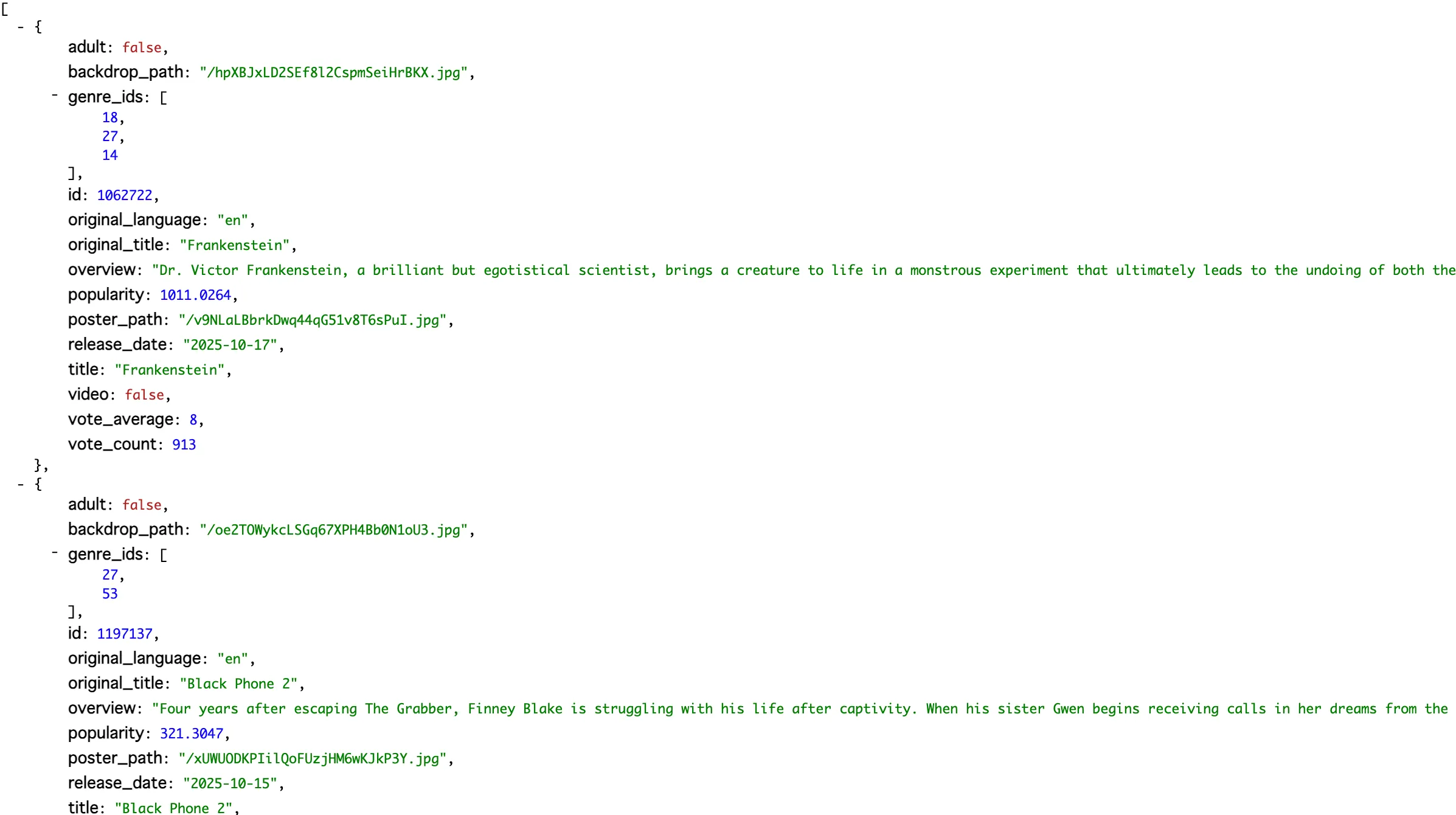
npm run dev and access http://localhost:4321/api/tmdb in your browser.
3. Display Data in the Page
Now you can call it on any Astro page.
Here’s the sample code for displaying title and overview:
---
import { GET as getMovies } from './api/tmdb.ts';

let response = await getMovies(Astro);
const movies = await response.json();
---

<div>
  {movies.map((m: any) => (
    <>
      <p>{m.title}</p>
      <p>{m.overview}</p>
    </>
  ))}
</div>
If you want to call the endpoint as SSR on a single specific page, you can do it by adding the following line in the .astro file.
---
export const prerender = false;
---
This file will be rendered as SSR.
Conclusion
I love how Astro makes things feel both simple and fun. That’s why I always enjoy using this framework.